
LIGO BLE ADAPTER User Guide: Difference between revisions
| [checked revision] | [checked revision] |
| (3 intermediate revisions by the same user not shown) | |||
| Line 141: | Line 141: | ||
# Switch to the '''Settings''' section to start pairing the sensor with the LIGO BLE Adapter as shown in Figure 5. | # Switch to the '''Settings''' section to start pairing the sensor with the LIGO BLE Adapter as shown in Figure 5. | ||
[[File:LIGO-BLE-Adapter-fig5-sensor-pairing.png|center| | [[File:LIGO-BLE-Adapter-fig5-sensor-pairing.png|center|900px|thumb|Figure 5. Steps to pairing LIGO sensor to the BLE Adapter]] | ||
=== Parameters Configuration === | === Parameters Configuration === | ||
Latest revision as of 10:48, 10 June 2026
Safety Information
Detailed safety information was not specified in the source user guide (LIGO BLE Adapter User Guide). The general guidance below applies to all installations:
| ⚠️ WARNING — Installation Safety |
|---|
|
Product Overview
Scope: This document provides instructions for installation, configuration, operation, and basic troubleshooting of the LIGO BLE Adapter. It is intended for system integrators, installers, and technical personnel involved in fuel monitoring and GPS telematics systems.
LIGO BLE Adapter is a communication and aggregation product designed to connect LIGO Air / LIGO Air Pro wireless fuel level sensors to GPS trackers that do not support BLE communication.
The device acts as:
- A BLE to wired protocol bridge
- A Sensor Union Module (SUM) capable of aggregating data from multiple sensors
- A BLE signal receiver with enhanced sensitivity for extended wireless range
LIGO BLE Adapter supports multiple output interfaces including RS232, RS485, and AF, ensuring compatibility with a wide range of GPS tracking devices.
System Architecture

- Wireless fuel sensors (LIGO Air / LIGO Air Pro) transmit fuel level data via BLE.
- LIGO BLE Adapter receives BLE data and processes it.
- Processed data is transmitted to the GPS tracker via RS232, RS485 or AF interface.
- Log sensor data for history view and troubleshooting.
Package Contents
Package contents were not specified in the source user guide (LIGO BLE Adapter User Guide). Refer to the LIGO BLE Adapter Datasheet or contact manufacturer for the latest package list.
Specifications
Detailed technical specifications were not included in this user guide. Refer to the LIGO BLE Adapter Datasheet for full parameters (power supply, dimensions, output range, etc.).
Installation
Cable and Wire Definition
| No. | Wire Colour | Function | Description |
|---|---|---|---|
| 1 | RED | VCC | Power supply (7 – 36 V DC) |
| 2 | WHITE | AF | Analog output (1 – 9 V) |
| 3 | BLACK | GND | Ground |
| 4 | GREEN | RS485-B | Signal wire B for RS485 |
| 5 | YELLOW | RS485-A | Signal wire A for RS485 |
| 6 | BLACK | GND | Ground |
| 7 | BROWN | RS232-RX | Input data for RS232 |
| 8 | BLUE | RS232-TX | Output data for RS232 |
Table 1. LIGO BLE Adapter wire color and function.
Mechanical Installation
- Install LIGO Adapter inside the vehicle cabin or protected enclosure.
- Avoid direct exposure to water, excessive heat, or strong electromagnetic sources.
- Ensure sufficient distance from high-current cables when possible.
Electrical Connection
- Connect VCC (Red) and GND (Black) to the power source.
- Connect selected communication interface to the GPS tracker:
- With LIGO BLE Adapter – RS232:
- Brown (RX) to Tx of GPS tracker.
- Blue (TX) to Rx of GPS tracker.
- With LIGO BLE Adapter – RS485:
- Yellow (RS485-A) connect to RS485-A of GPS tracker.
- Green (RS485-B) connect to RS485-B of GPS tracker.
- With LIGO BLE Adapter – AF:
- White (AF output) connect to Analog input of GPS tracker.
- With LIGO BLE Adapter – PRO:
- You can choose one of the above interfaces to connect to GPS tracker.
- With LIGO BLE Adapter – RS232:
- Verify wiring before powering on the system.
Configuration
LIGO BLE Adapter is configured using LIGO BLE Configurator app. Please download and install it from Play Store (Android) or App Store (iOS) before starting configurations.
The software is structured into three main sections, each serving a specific purpose in installation, operation and troubleshooting.
-
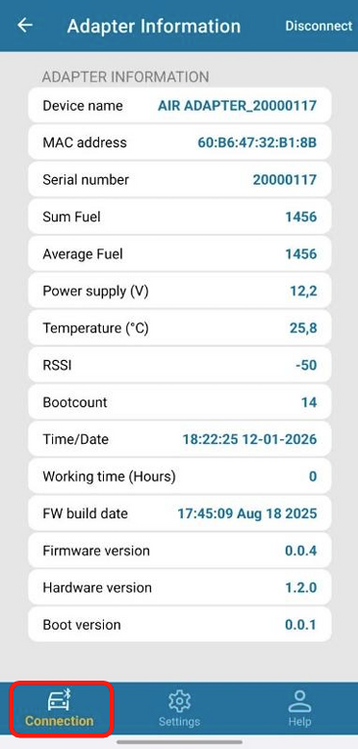 Figure 1. Connection section
 -
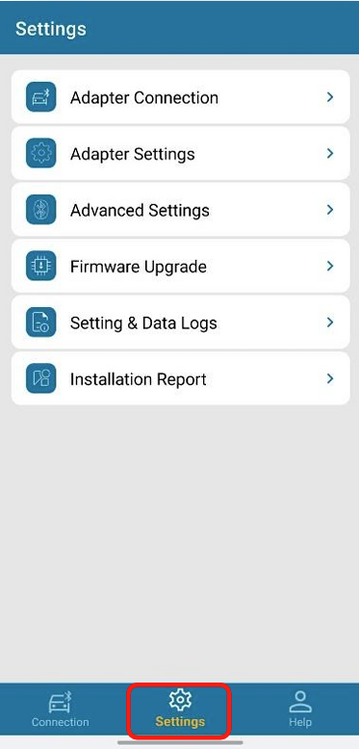 Figure 2. Settings section
 -
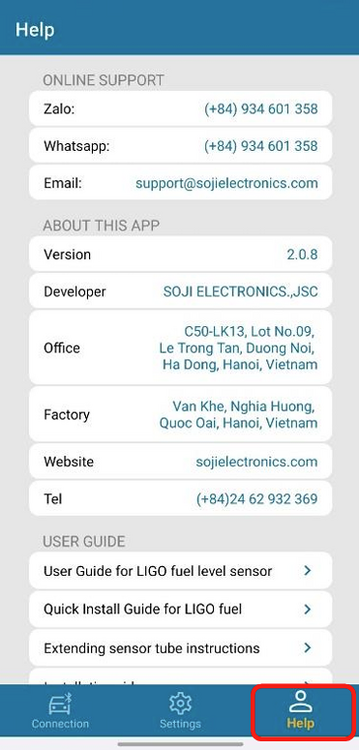 Figure 3. Help section


Connection Section
This section provides general information and real-time status of this device. It includes:
- Device name.
- Device MAC address and serial number.
- Firmware / Hardware version.
- Fuel data of paired sensors.
- Supply voltage and temperature.
- RSSI signal.
The Connection section allows users to quickly verify that the adapter is powered, accessible, and ready for configuration.
Settings Section
The Settings section contains all configuration parameters related to sensor pairing, output interfaces, data type, etc. Key configuration functions include:
- Sensor pairing management (add / remove sensors using MAC address).
- Output interface configuration (RS232, RS485, AF).
- Communication protocol.
- Data mode selection (SUM, AVERAGE, INDIVIDUAL).
- Data log configuration and viewing.
- Installation report generation.
This section is intended for device setup and integration with GPS tracking devices.
Help Section
The Support section provides technical assistance and software information. It includes:
- Software version.
- Technical support contact information.
- Reference documentation and troubleshooting resources.
This section ensures that users can easily access assistance if necessary.
Sensor Pairing
Follow these steps to pair LIGO Air / LIGO Air Pro sensors with LIGO BLE Adapter:
- Launch LIGO BLE Configurator application → Select LIGO BLE ADAPTER (the software auto-scans nearby BLE Adapters) → press Connect button to connect to the target BLE Adapter.
- Switch to the Settings section to start pairing the sensor with the LIGO BLE Adapter as shown in Figure 5.

Parameters Configuration

| No. | Parameter | Description |
|---|---|---|
| 1 | Message interval (1…60 s) | Defines the time interval between two consecutive data transmissions from the LIGO BLE Adapter. |
| 2 | Protocol | Selects the output communication protocol used to transmit fuel data to the GPS tracker:
|
| 3 | Automatic transmission mode | Defines the data transmission format:
|
| 4 | Baud rate | Sets the serial communication speed for RS232 or RS485 output. |
| 5 | Data mode | Defines how fuel data from multiple paired sensors is processed before transmission:
|
| 6 | Address (1–254) | Sets the Modbus address of the LIGO BLE Adapter. |
| 7 | Level min (0…8 V) | Defines the minimum output voltage level for the AF output. |
| 8 | Level max (2…10 V) | Defines the maximum output voltage level for the AF output. |
| 9 | Max volume | Defines the maximum digital fuel level resolution used for data transmission:
|
Table 2. Parameter descriptions of LIGO BLE Adapter.
Operation
Data Log

The Data Log function allows users to view historical fuel level data received from paired sensors over time. The log records:
- Timestamp of received data.
- Fuel level values from paired sensors.
- RSSI signal.
- Temperature of sensor.
This function is used for:
- System verification during installation.
- Diagnostic and troubleshooting purposes.
- Validation of sensor communication stability.
The user can select a time period (Today, Yesterday, Week, Month, or a Custom Period) and then press the Download button to retrieve the data log, as shown in Figure 7. The retrieved data log is displayed in the Log Display Area.
Settings Log

The Settings Log function allows users to review the historical configuration records of the LIGO BLE Adapter. This log stores all parameter changes previously configured by the user, enabling traceability and verification of device setup.
The user can select the Log source (data from EEPROM or data on the server), and the settings log will be displayed in the Log Display Area, as shown in Figure 8.
LED Status Indication
The LIGO Adapter is equipped with a status LED to indicate its current operating state:
| LED Status | Description |
|---|---|
| Red blinking | No sensor is paired with the adapter. |
| Red solid | Sensor(s) paired, but no data is being received. |
| Green solid | Valid data is being received from paired sensor(s). |
Troubleshooting
| Issue | Possible Cause | Recommended Action |
|---|---|---|
| No data on GPS | Incorrect wiring | Verify interface wiring. |
| Sensor not detected | MAC address not added | Reconfigure sensor list. |
| Unstable data | BLE signal attenuation | Reposition adapter. |
| Incorrect fuel value | Wrong data mode | Check SUM / AVERAGE setting. |
If problem persists, contact Support.
Maintenance
Detailed maintenance procedures were not specified in the source user guide. General recommendations:
- Periodically inspect wire connections for corrosion or damage.
- Ensure the adapter remains in a protected enclosure, away from water and excessive heat.
- Verify LED status periodically — solid green indicates healthy operation.
- Use the Data Log function for routine validation of sensor communication stability.
Certification / Compliance
No certification or compliance information was provided in the source user guide (LIGO BLE Adapter User Guide). Refer to Product Certification & Approvals for current certificate status.
Support / Contact
| Channel | Detail |
|---|---|
| Company | SOJI ELECTRONICS JOINT STOCK COMPANY |
| Address | NO-04, LK-03 Ha Tri, Ha Cau, Ha Dong, Hanoi, Vietnam |
| Tel/Fax | +84 24 62 932 369 |
| contact@sojielectronics.com | |
| Website | sojielectronics.com |
Revision History
Loading revision history...