
LIGO BLE CONFIGURATOR
Overview
The LIGO BLE Configurator is a cross-platform mobile application for configuring, monitoring, and managing LIGO Bluetooth Low Energy (BLE) fuel level sensors. It runs on Android and iOS and communicates with sensors over Bluetooth Low Energy. The application is developed by SOJI Electronics JSC using Microsoft .NET MAUI.
Supported Product Lines
From the home screen (Bluetooth Products page) you choose one of three product lines. The available pages and settings adapt to the product you select.
| Product | Type | Description |
|---|---|---|
| LIGO AIR | Wireless sensor | Battery-powered wireless fuel level sensor using Bluetooth 5.2 |
| LIGO PRO BLE / PRO 2(S) | Wired sensor | Wired fuel level sensor with Bluetooth 5.2 for wireless configuration |
| LIGO AIR ADAPTER | Transceiver | Transceiver device that connects multiple LIGO AIR wireless sensors |
Key Capabilities
- Scan for and connect to nearby LIGO BLE sensors
- View real-time sensor data (fuel level, temperature, capacitance, battery, accelerometer)
- Calibrate the tank using Set Empty / Set Full points and a multi-point calibration table
- Configure sensor parameters (output format, transmission interval, address, baud rate, and more)
- Manage BLE / advanced settings (TX power, advertising interval, BLE mode, logging)
- Download stored data logs and export them as Excel (.xlsx) files
- View setting / event logs retrieved from the SOJI server
- Update sensor firmware
- Create installation and maintenance reports with photos
- Manage multiple wireless sensors through the LIGO AIR ADAPTER
- Protect sensor access with a password, including a password recovery mechanism
Navigation Structure
After a product is selected, the application uses a three-tab layout at the bottom of the screen:
| Tab | Purpose |
|---|---|
| Connection | Device scanning, connection, and the real-time device dashboard |
| Settings | Product-specific configuration pages (calibration, parameters, advanced settings, logs, reports) |
| Help | Online support contacts, application information, and user-guide resource links |

System Requirements
Operating System
| Platform | Minimum version |
|---|---|
| Android | Android 8.0 Oreo (API level 26) or later |
| iOS | iOS 13.2 or later |
Hardware
- A mobile device with Bluetooth Low Energy (BLE) support. BLE hardware is required; the app shows a warning if the device does not support BLE.
- A camera is used for scanning QR codes and taking report photos (optional features).
Permissions
The application declares and requests the following permissions. On first use (when the Products page opens), the app requests Bluetooth, Location, and Camera permission.
| Permission | Why it is used |
|---|---|
| Bluetooth | Read data from and write configuration to LIGO BLE sensors |
| Location | Required by the operating system for BLE scanning; also used to record the sensor installation location |
| Camera | Scan a sensor serial-number QR code and take photos for reports |
| Photos / Storage | Attach photos to reports and save exported data files |
| Internet / Network | Upload logs and reports and retrieve server-side setting logs |
NOTICE: Android Location requirement
On Android, Location Services must be enabled for BLE scanning to work. This is an Android operating-system requirement, not a limitation of the application.
Network
An internet connection is required only for the server-connected features: uploading data logs and reports to the SOJI server, and viewing setting / event logs retrieved from the server. Scanning, connecting, calibration, parameter configuration, and firmware updates work over Bluetooth without an internet connection.
Installation
Installing the Application
- Install LIGO BLE Configurator from the Apple App Store (iOS) or Google Play Store (Android), or from the distribution package provided by SOJI Electronics.
- Open the application after installation completes.
-
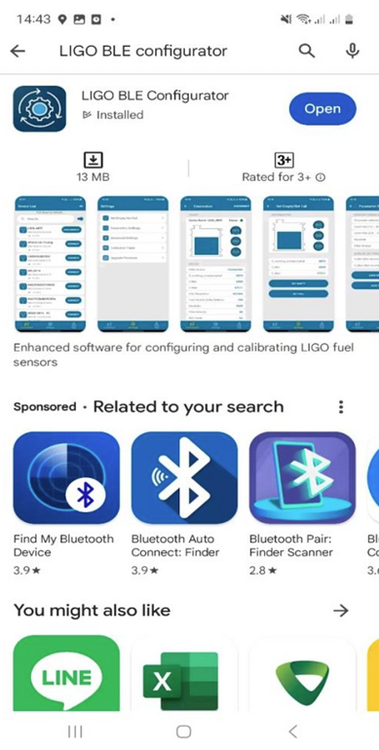 LIGO BLE Configurator on Google Play
 -
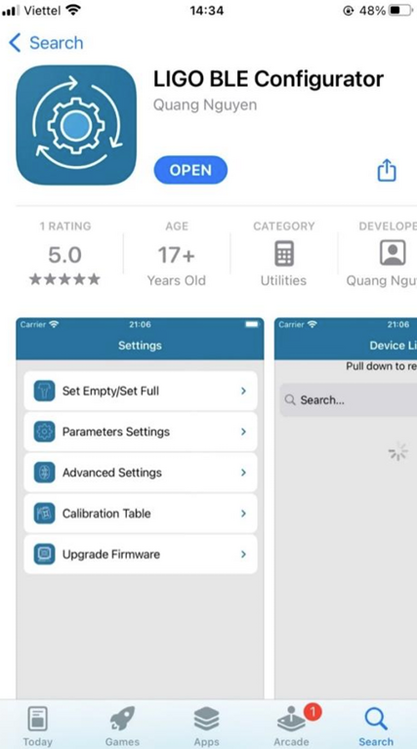 LIGO BLE Configurator on App Store


Granting Permissions
When you open the application and reach the Products page, it checks for the permissions it needs and prompts you to grant any that are missing:
- Allow Bluetooth access. If Bluetooth permission is not granted, the app shows a message asking you to allow Bluetooth access and cannot scan for sensors.
- Allow Location access (used for BLE scanning and to record installation location).
- Allow Camera access (used for QR scanning and report photos).
- If Bluetooth is turned off on the device, enable it when prompted.
NOTICE: Bluetooth not available
If the device hardware does not support Bluetooth Low Energy, the app displays the warning "Your phone does not support Bluetooth Low Energy" and scanning is unavailable.
[ Screenshot to be added: Operating-system permission dialog (Bluetooth / Location / Camera) ]
Please capture this screen and place the image here.
Operating-system permission dialog (Bluetooth / Location / Camera)
Quick Start
This section walks through connecting to a sensor and reaching its dashboard for the first time.
Select a Product
- Open the app to display the Bluetooth Products page.
- Tap the product line you are working with: LIGO AIR, LIGO PRO BLE / PRO 2(S), or LIGO AIR ADAPTER.
- The app opens the scan page for that product and begins searching for nearby BLE devices automatically.
Scan and Connect
The scan page lists discovered devices. Each row shows the device name, signal strength (RSSI), and a fuel-level reading taken from the advertisement data.
- Use the search bar to filter the list by name or serial number.
- Use the SOJI filter toggle to show only SOJI / LIGO devices.
- Use the QR scanner to find a specific sensor by scanning its QR code.
- Locate your target device in the list.
- Tap Connect on the device row to start the BLE connection.
- When the connection succeeds, the app opens the Device page (dashboard).
-
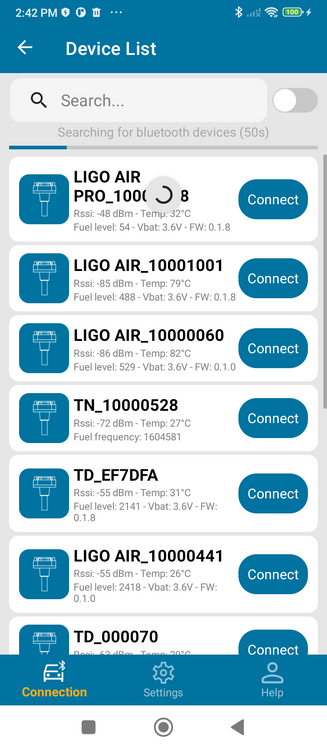 Figure 2. Scan page (LIGO AIR)
 -
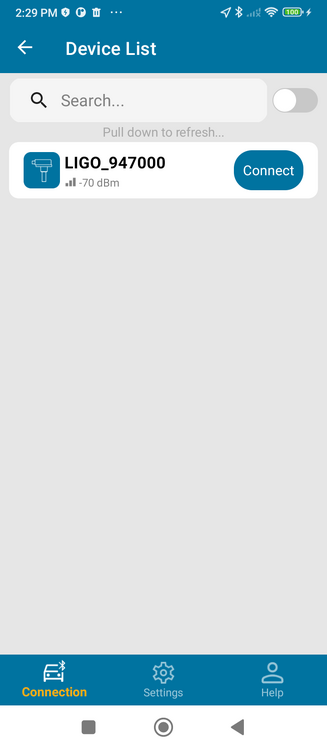 Figure 3. Scan page (LIGO PRO)


Open Settings
Use the Settings tab to reach the configuration pages for the connected device. The menu contents depend on the product line.
-
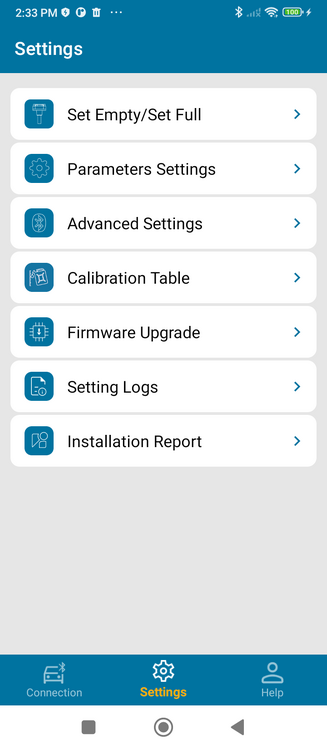 Figure 5. Settings menu (LIGO PRO)
 -
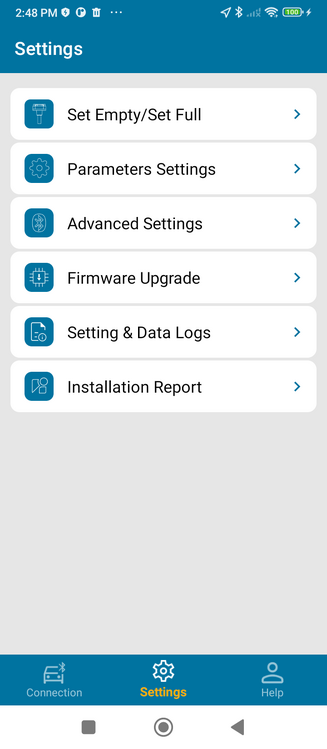 Figure 6. Settings menu (LIGO AIR)


Password Prompt
LIGO sensors are password protected. The password is not requested at connection time; instead, it is requested the first time you open a password-protected settings page (for example Parameter Settings, Advanced Settings, or Set Empty / Set Full). Enter the password and tap OK to continue.
- The factory default password is 1234. Change it after the initial setup.
- If you forget the password, use Forgot Password on the prompt to obtain a recovery hash and contact SOJI support. See Section 9.

Features
This section summarises the main screens. Detailed configuration steps are in Section 6 (Configuration / Settings).
Device Dashboard
After connecting, the Device page shows a tank graphic with a fill-level indicator plus live readings. The fields shown depend on the product line.
LIGO PRO BLE
-
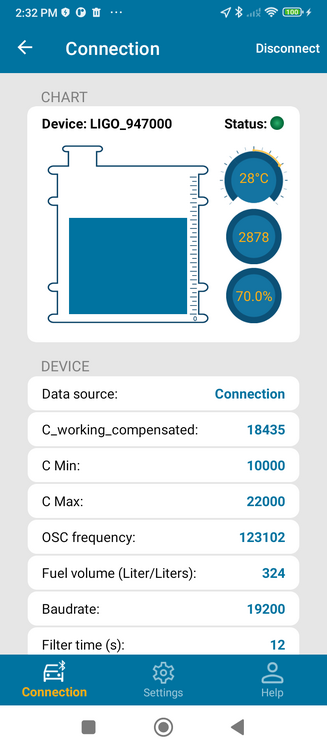 Figure 7. LIGO PRO dashboard (top)
 -
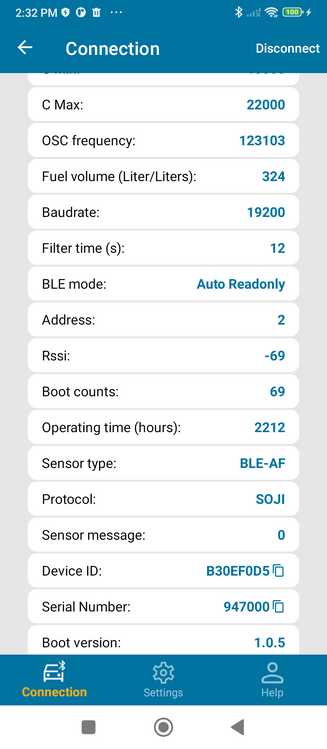 Figure 8. LIGO PRO dashboard (details)
 -
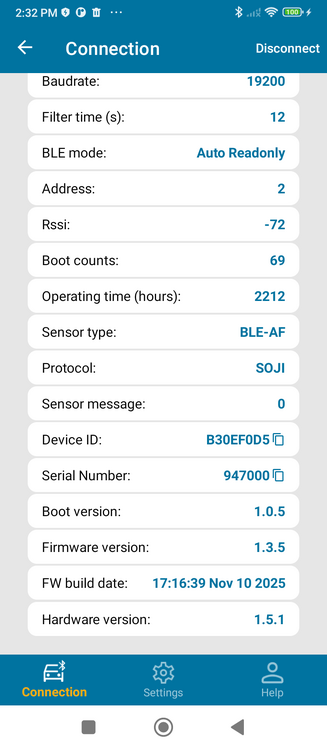 LIGO PRO dashboard (further details)


Fields displayed under the DEVICE section include:
| Field | Description |
|---|---|
| Data source | Source of the displayed data (advertisement or connected) |
| C_working_compensated | Temperature-compensated working capacitance value |
| C Min / C Max | Empty / full tank capacitance reference values |
| OSC frequency | Oscillator frequency reading |
| Fuel volume (Liter) | Calculated fuel volume based on calibration |
| Baudrate | Current serial communication baud rate |
| Filter time (s) | Signal filtering time in seconds |
| BLE mode | Current Bluetooth operating mode |
| Address | Sensor network address |
| Rssi | Received Signal Strength Indicator |
| Boot counts | Number of sensor power-on cycles |
| Operating time (hours) | Total sensor operating time |
| Sensor type | Hardware type identifier |
| Protocol | Communication protocol (when available) |
| Sensor message | Status message (color-coded: green = OK, red = error) |
| Device ID / Serial Number | Identifiers (tap to copy to clipboard) |
| Boot / Firmware / Hardware version, FW build date | Firmware and hardware identifiers |
LIGO AIR
-
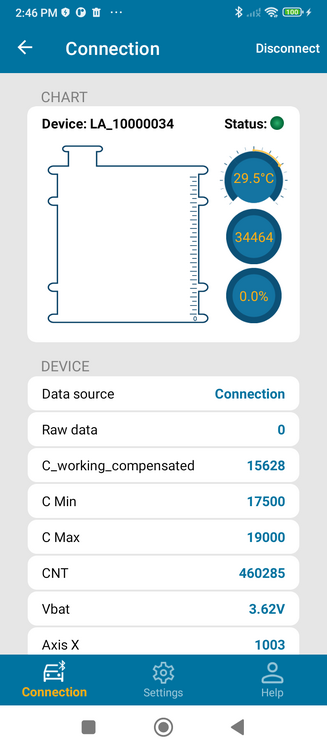 Figure 9. LIGO AIR dashboard (top)
 -
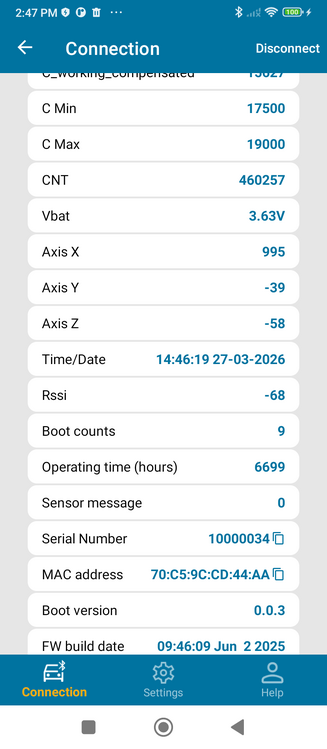 Figure 10. LIGO AIR dashboard (details)
 -
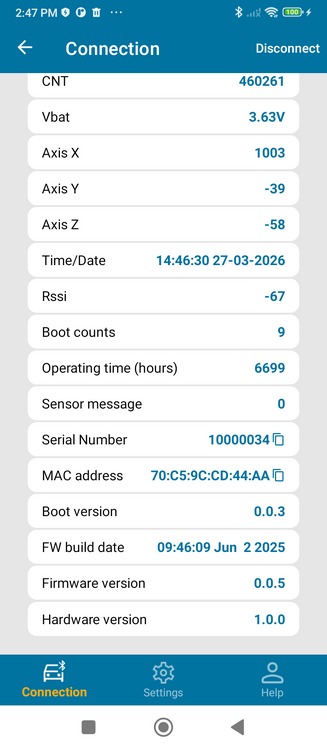 LIGO AIR dashboard (further details)


The LIGO AIR dashboard adds wireless-specific fields not present on the wired LIGO PRO:
| Field | Description |
|---|---|
| Raw data | Unprocessed sensor reading |
| C_working_compensated, C Min, C Max | Capacitance working and reference values |
| CNT | Counter / oscillator count value |
| Vbat | Battery voltage (e.g. X.XX V) |
| Axis X / Y / Z | Three-axis accelerometer readings |
| Time/Date | Sensor internal real-time clock value |
| Rssi, Boot counts, Operating time | Signal strength and usage statistics |
| Sensor message | Status message (color-coded) |
| Serial Number / MAC address | Identifiers (tap to copy) |
| Boot / Firmware / Hardware version, FW build date | Firmware and hardware identifiers |
Calibration
Two calibration methods map raw capacitance readings to fuel volume: Set Empty / Set Full (two reference points) and a multi-point calibration table for non-linear tanks. See Section 6.1.
Logs
- Data Logs – download historical measurements stored in the sensor and export them as Excel files.
- Setting Logs / Event Logs – view configuration-change and event history retrieved from the SOJI server.
Firmware Update
Update the sensor firmware over the air. LIGO PRO uses the Nordic DFU process (.zip files); LIGO AIR and LIGO AIR ADAPTER use the Silicon Labs OTA process (.gbl files). See Section 6.4.
Reports
Create installation and maintenance reports with up to 3 photos each, and view previously created reports. See Section 6.5.
Multi-Sensor Management (LIGO AIR ADAPTER)
The LIGO AIR ADAPTER aggregates data from multiple LIGO AIR sensors. From the adapter connection page you can add sensors, remove sensors, and refresh their status. See Section 6.

Configuration / Settings
All configuration pages provide Load from Sensor (read current values from the device) and Save to Sensor (write changes to the device).
Calibration
Set Empty / Set Full
Establishes the empty-tank and full-tank reference points for linear fuel-level calculation. Applicable to LIGO PRO BLE and LIGO AIR.

Set the empty point:
- Lower the fuel level to minimum (drain the tank).
- Open Settings > Set Empty/Full.
- Watch the live C_working_compensated value and wait for it to stabilise.
- Tap Set Empty to record the C Min value.
Set the full point:
- Fill the tank to maximum.
- Wait for the C_working_compensated value to stabilise.
- Tap Set Full to record the C Max value.
CAUTION: Stable readings required
Make sure the fuel level is completely stable before tapping Set Empty or Set Full. Unstable readings produce inaccurate calibration.
Multi-Point Calibration Table
For non-linear tanks, a multi-point table improves accuracy. Applicable to LIGO PRO BLE and LIGO AIR (on LIGO AIR it is reached via the calibration page).

- Tap Load from Sensor to read the current table from the device.
- Tap + to add a calibration point.
- Enter the known Volume (liter); the Level value comes from the current reading.
- Repeat for several fuel levels (for example empty, 1/4, 1/2, 3/4, full).
- Tap - next to a row to remove a point.
- Tap Save to Sensor to write the table to the device.
Use View Chart to plot the calibration curve and confirm it rises smoothly. On LIGO AIR, Advanced Settings > Recalculate in liters recalculates stored calibration data into liter units.
Parameter Settings
LIGO PRO BLE

| Parameter | Options / Range | Description |
|---|---|---|
| Automatic transmission | OFF, HEX, ASCII, ASCII-EXT, ASCII-DV | Serial output format |
| Prefix / Postfix | Free text | Text added before / after messages |
| Parameter selection | Units (0-4095), Volume (liter), Level (mm), Volume (%) | Output parameter type |
| Address | 0 - 254 | Sensor network address |
| Message interval (s) | 0 - 255 | Time between automatic transmissions |
| Actual length (mm) | 0 or greater | Physical sensor tube length |
| Level min / Level max | 0.0-8.0 V / 2.0-9.0 V | Analog output voltage range (analog mode) |
| Baudrate | 2400, 4800, 9600, 14400, 19200, 38400, 115200 | Serial communication speed |
| Filter time (s) | 0 - 255 | Signal smoothing time |
| Volume unit (Liter) | 0.1 (liter), 1 (liter) | Fuel volume resolution |
| C_Min / C_Max (Manual) | 0 - 100000 | Capacitance reference values |
CAUTION: Manual C_Min / C_Max
Editing C_Min and C_Max manually is not recommended and can cause inaccurate readings. Use the Set Empty / Set Full procedure instead.
LIGO AIR

| Parameter | Options / Range | Description |
|---|---|---|
| Advertising protocol | SOJI, ESCORT, MIELTA, TECHNOTON, EUROSEN_V1, EUROSEN_V2 | BLE advertising data format |
| Maximum level | 1023, 4095 | Maximum digital output value |
| Filter time | 1 - 15 | Signal smoothing factor |
| C_Min / C_Max (Manual) | 0 - 300000 | Capacitance reference values |
LIGO AIR ADAPTER
| Parameter | Options / Range | Description |
|---|---|---|
| Message interval (s) | 1 - 60 | Interval between data transmissions |
| Protocol | SOJI, LLS | Output communication protocol |
| Baudrate | 2400, 4800, 9600, 14400, 19200, 38400, 115200 | Serial communication speed |
Advanced Settings
LIGO PRO BLE (BLE Settings)

| Parameter | Options | Description |
|---|---|---|
| BLE transmission level | 0 - 10 | Bluetooth transmission power level |
| BLE mode | Off, On, Auto Off, Auto Readonly | Bluetooth operating mode |
| BLE mode | Behavior |
|---|---|
| On | Bluetooth is always on and configurable |
| Off | Bluetooth is turned off; reconfiguration requires a wired computer connection (not recommended) |
| Auto Off | Bluetooth turns off after 24 h of continuous power; restarts after a power cycle |
| Auto Readonly | Bluetooth becomes read-only after 24 h; writable again after a power cycle |
WARNING: BLE mode Off
Setting BLE mode to Off disables Bluetooth on the sensor until it is reconfigured through a wired computer connection. Do not select it unless you have alternative configuration access.
The Change your password section lets you set a new password: enter the current password, the new password, confirm it, and tap Change password.
LIGO AIR

| Parameter | Options / Range | Description |
|---|---|---|
| Advertising interval (s) | 5, 10 | BLE advertisement interval (restricted to 10 when TX power >= 10 dBm) |
| Measuring interval (s) | 5, 6, 7, 8, 9, 10 | Time between measurement cycles |
| TX power (dBm) | 6, 7, 8, 9, 10, 11, 12, 13, 14, 15, 16, 17, 18, 19.5 | BLE transmission power |
| Log data mode | Disable, Enable | Internal data-logging on/off |
| Log data interval | 30, 60, 120, 180, 240 (s) | Interval between logged data points |
Utility functions on this page:
| Function | Description |
|---|---|
| Sync time/date | Synchronise the sensor's internal clock (RTC) with the phone |
| Recalculate in liters | Convert stored calibration data into liter units |
| Factory reset | Reset the sensor to factory defaults |
| Change password | Set a new sensor password |
WARNING: Factory reset
Factory reset erases all calibration data, parameter settings, and custom configuration. This action cannot be undone. Document your settings first.
LIGO AIR ADAPTER
| Parameter | Options / Range | Description |
|---|---|---|
| Log data mode | Disable, Enable | Internal data-logging on/off |
| Log data interval | 30, 60, 120, 180, 240 (s) | Interval between logged data points |
The adapter advanced page also provides Sync time/date, Factory reset, and Change password.
Firmware Update

Firmware update uses a three-step workflow: select the firmware File, select the target Device, then start the Upload and monitor progress.
| Product | Method | File type |
|---|---|---|
| LIGO PRO BLE | Nordic DFU | .zip |
| LIGO AIR / LIGO AIR ADAPTER | Silicon Labs OTA | .gbl |
During the LIGO PRO upload the app reports the stages Enable Bootloader, DFU Initialization, Firmware Upload (with upload speed in kB/s and percentage), and DFU Complete. After updating, reconnect and check the Firmware version and FW build date on the dashboard.
WARNING: Do not interrupt a firmware update
Do not interrupt the sensor power supply and keep the phone close to the sensor while the firmware is loading. Interrupting an update may make the sensor inoperable.
[ Screenshot to be added: Silicon Labs OTA firmware page (LIGO AIR / ADAPTER) ]
Please capture this screen and place the image here.
Silicon Labs OTA firmware page (LIGO AIR / ADAPTER)
Installation & Maintenance Reports

From Settings > Installation Report you can create an installation report, create a maintenance report, or view existing reports.
- Choose Create installation report or Create maintenance report.
- Fill in the report fields (technician, date, vehicle/plate, device details). Device serial and firmware are filled in automatically when connected.
- Attach up to 3 photos by taking a new photo or selecting one from the gallery.
- Tap Create Report to generate the report.
Use View report to search and open a saved report; the report detail page shows the entered values and attached photos.
[ Screenshot to be added: Create report form and report detail page ]
Please capture this screen and place the image here.
Create report form and report detail page
Data Logs
-
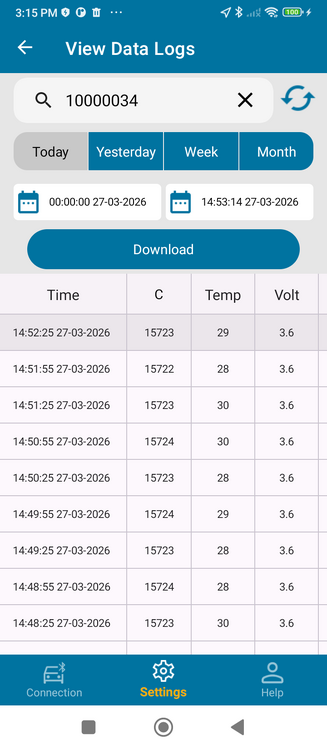 Figure 20. Data logs with downloaded data
 -
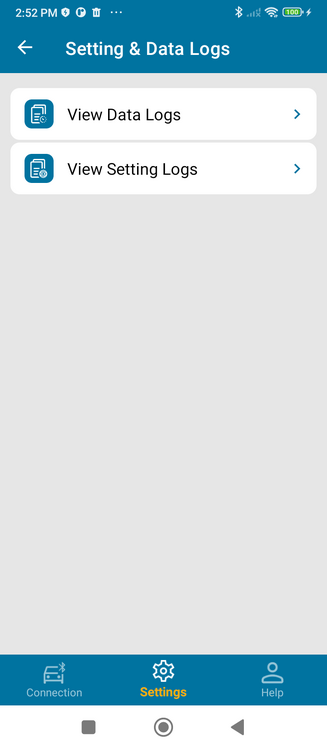 Data logs — downloaded data view


Download historical data stored in the device and review it in a table. Applicable to LIGO PRO BLE, LIGO AIR, and LIGO AIR ADAPTER. Select a date range, then download:
| Range | Description |
|---|---|
| Today / Yesterday | Current or previous day |
| Week / Month | Past 7 days / past 30 days |
| Custom | User-defined start and end date/time |
- Open Settings > Data Logs (for LIGO AIR, via Setting & Data Logs).
- Make sure the sensor is connected (Download is disabled when disconnected).
- Select the date range and tap Download.
- Choose where to save: Device and server or Server only.
- Save the exported .xlsx (Excel) file to your device.
The downloaded data grid includes columns: Time, C (capacitance), Temp, Volt, Pulse, AccX/AccY/AccZ, Incli (inclination), and Level.
Setting / Event Logs

View configuration-change and event history. For LIGO PRO this is Setting Logs; for LIGO AIR it is reached via Setting & Data Logs > View Setting Logs.
- Open the setting-logs page; the search box is pre-filled with the connected device's ID. You can also enter an IMEI or serial number.
- Entries appear as expandable cards. Tap an entry to view details such as the changed property, the new value, and the GPS location at the time of the event.
NOTICE: Internet required
Server-side setting logs require an internet connection. If the network is unavailable the app shows "Network Error!".
Compatibility
Devices and Operating Systems
| Item | Supported |
|---|---|
| Mobile OS | Android 8.0 (API 26) and later; iOS 13.2 and later |
| Connectivity | Bluetooth Low Energy |
Supported Sensors
- LIGO AIR (wireless)
- LIGO PRO BLE and LIGO PRO 2(S) (wired)
- LIGO AIR ADAPTER (transceiver for multiple LIGO AIR sensors)
Advertising Protocols (LIGO AIR)
The LIGO AIR advertising data can be formatted using one of the following protocols, selectable in Parameter Settings:
- SOJI
- ESCORT
- MIELTA
- TECHNOTON
- EUROSEN_V1
- EUROSEN_V2
The LIGO AIR ADAPTER output supports the SOJI and LLS protocols.
Firmware Update Compatibility
| Product | Update method | File type |
|---|---|---|
| LIGO PRO BLE | Nordic DFU | .zip |
| LIGO AIR / LIGO AIR ADAPTER | Silicon Labs OTA | .gbl |
Language
The application interface is in English only. A language indicator labelled "EN" appears in the top bar of the Products page; in this version it is an indicator and the application does not provide additional interface languages.
Troubleshooting
Connection
| Problem | Solution |
|---|---|
| Device not in the scan list | Enable Bluetooth; enable Location Services (Android); move closer to the sensor; check whether the SOJI filter is hiding it; the sensor BLE mode may be Off |
| Connection drops during use | Stay close to the sensor; reduce nearby BLE interference |
| "Please connect to Sensor!" | You opened a settings page without an active connection - connect first from the Connection tab |
| "Adapter is disconnected to your phone!" | The adapter connection was lost - return to the scan page and reconnect |
| "Your phone does not support Bluetooth Low Energy" | The device hardware lacks BLE; use a BLE-capable phone |
Password
| Problem | Solution |
|---|---|
| Forgot the password | Tap Forgot Password on the prompt, note the recovery hash, and contact SOJI support (the hash is time-limited) |
| Password is rejected | Re-enter carefully; the factory default is 1234 |
| "Please enter the sensor's password!" | Enter the sensor password when prompted before a write operation |
Calibration
| Problem | Solution |
|---|---|
| Reading will not stabilise | Park on level ground with the engine off and let the fuel settle before Set Empty / Set Full |
| Value highlighted in red | The value is outside the accepted range shown for that field |
| Calibration looks wrong | Use Set Empty / Set Full instead of editing C_Min / C_Max manually |
Firmware Update
| Problem | Solution |
|---|---|
| Upload button disabled | Connect to the sensor first and ensure the BLE link is active |
| Connection lost during update | Keep the phone close, power-cycle the sensor, and retry from step 1 |
| Update fails repeatedly | Re-download the firmware file and confirm it is the correct type for the product |
Logs / Network
| Problem | Solution |
|---|---|
| "Network Error!" | Check the internet connection and retry (server logs require internet) |
| No data for the selected range | Widen the date range or confirm data logging was enabled on the sensor |
Security & Privacy
Sensor Access Protection
- Sensor configuration is protected by a password. The factory default is 1234; change it after the initial setup.
- The password is requested when you open a password-protected settings page, not at connection time.
- The app stores sensor passwords in encrypted form on the device.
Password Recovery
If the password is lost, the Forgot Password option produces a recovery hash. The hash is time-limited and is used together with SOJI support to recover access. Record the new password securely after changing it.
Recommendations
- Change the default sensor password (1234) after the first connection.
- Keep a secure record of any new password and of the recovery hash when you change a password.
- Use BLE mode Off only when you have a wired computer connection available, because it disables Bluetooth access to the sensor.
Support / Contact
Support contacts and application information are available on the Help tab.
Online Support
| Channel | Contact |
|---|---|
| Zalo | (+84) 934 601 358 |
| (+84) 934 601 358 | |
| support@sojielectronics.com |
About / Company
| Field | Value |
|---|---|
| Developer | SOJI ELECTRONICS., JSC |
| Office | C50-LK13, Lot No.09, Le Trong Tan, Duong Noi, Ha Dong, Hanoi, Vietnam |
| Factory | Van Khe, Nghia Huong, Quoc Oai, Hanoi, Vietnam |
| Website | sojielectronics.com |
| Tel | (+84) 24 62 932 369 |
-
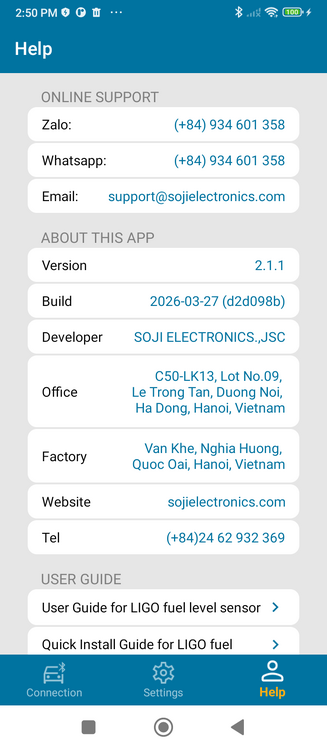 Figure 22. Help / About page
 -
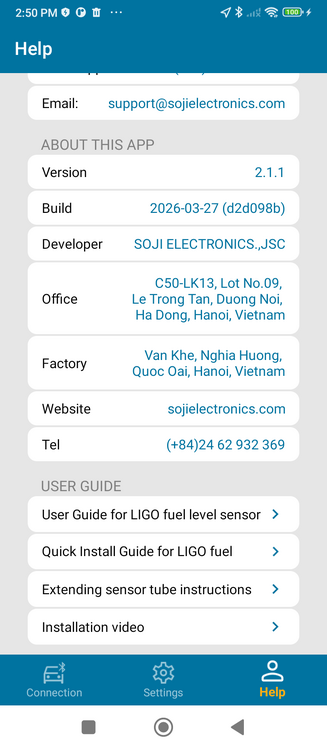 Help / About page (details)


User-Guide Resources (in the Help tab)
- User Guide for LIGO fuel level sensor
- Quick Install Guide for LIGO fuel level sensor
- Extending sensor tube instructions
- Installation video
Tap a resource to open it in the device's web browser.
Revision History
Loading revision history...